Main Window
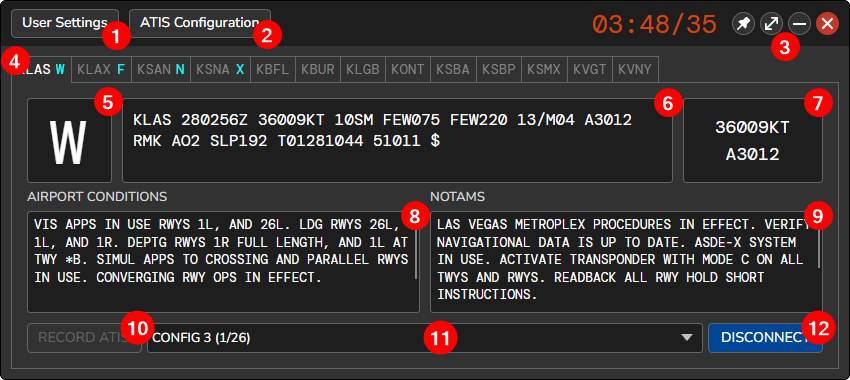
- Opens the User Settings window.
- Opens the ATIS Configuration window.
- Window Controls: Pin Window, Toggle Mini-Window, Minimize and Exit. You can also double-click the title bar to toggle the Mini-Window.
- The ATIS Stations saved to the current Profile. Connected ATIS Stations will display the ATIS letter next to the identifier. Stations you have connected are listed first, then stations that another controller is publishing (their letter is red), then the rest, each group in profile order.
- The current ATIS letter. Left mouse-click to increment and right-mouse click to go back to the previous letter. For a station that another controller is publishing, a left-click only acknowledges a new ATIS.
- The METAR for the selected ATIS station.
- The current surface wind and altimeter for the ATIS station.
- A free-form textbox for Airport Conditions, such as active runways, approaches in use, etc. Click the AIRPORT CONDITIONS heading to manage static messages.
- A free-form textbox for NOTAMs. Click the NOTAMS heading to manage static messages.
- Opens the Record ATIS dialog if the ATIS station is configured for manual recorded ATIS.
- The Presets dropdown list.
- The Connect or Disconnect button is used to connect or disconnect the ATIS from the network.