ATIS Station
Each ATIS Station appears as a separate tab in the main user interface. When an ATIS is connected, the current ATIS letter is highlighted in cyan.
If another controller connects an ATIS that you’ve added to your available stations, the ATIS letter will automatically sync and appear in the corresponding tab, just as if you were hosting that ATIS yourself. Any ATIS Station that you connect will also be synced to other users who have the ATIS Station added to their profile.
After disconnecting an ATIS, the ATIS letter will remain synced with other users for 5 minutes before being removed. This provides a seamless transition if another user takes over your ATIS connections and wishes to continue using the same ATIS letter.
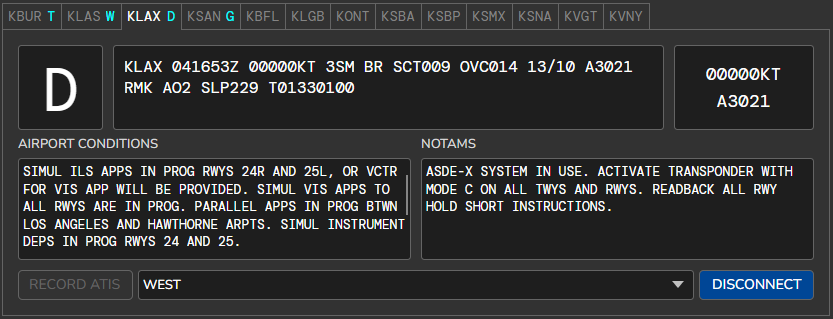
The selected airport conditions and NOTAMs will be displayed in cyan-colored text within the free-form text boxes. This cyan-colored text is read-only and cannot be edited directly.
Underlined text
Some words in the Airport Conditions and NOTAMs boxes have a dotted underline. The underline marks text that the voice ATIS will speak differently from how it is written. Hover over underlined text to see how it will be spoken. In the screenshot above, hovering over the underlined RWY 23 shows that it will be spoken as “RUNWAY TWO THREE”.
Underlined text includes:
- Contractions, both your own and the built-in ones. See Contractions.
- Runway and taxiway names, such as
RWY 25RorTWY E16, and numbers in group format, such as*5058. - Airport and navaid identifiers written with a plus sign, such as
+KLAX.
See Text Parsing for all of the rules. Text that is not underlined is spoken as it is written. The underline is only a preview in the text box; it is not part of the ATIS. The same underline appears in the preset template and in the Sandbox.
New ATIS Update
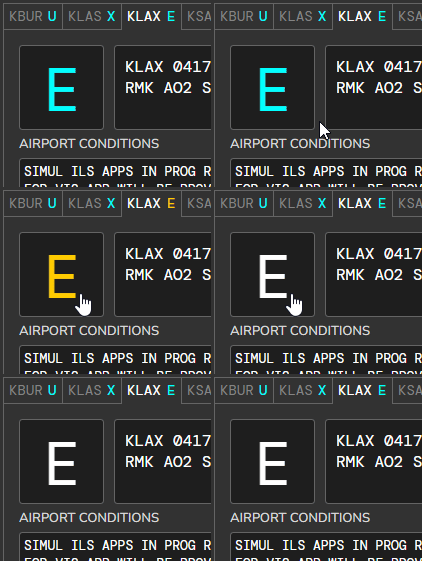
When a new ATIS update is ready, the ATIS letter for the corresponding ATIS Station will blink. If you have enabled notification sounds, you will also hear a notification sound. To acknowledge the ATIS update, select the respective ATIS Station tab and left-click the ATIS letter once.
Manually Enter ATIS Letter
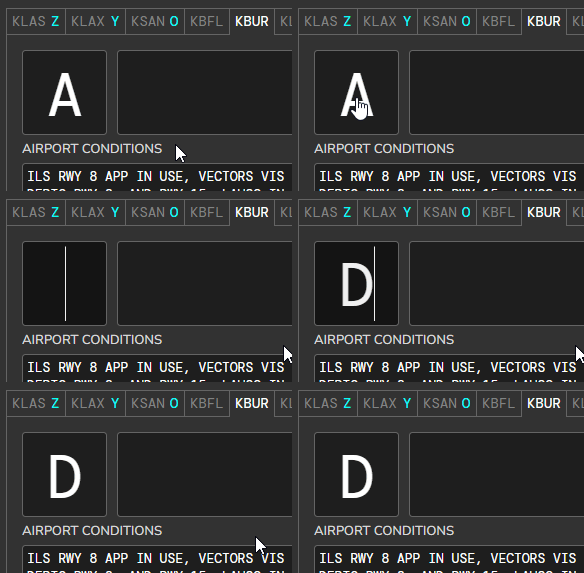
If you prefer not to cycle through each letter to find the one you want, you can manually enter the ATIS letter. To enter the ATIS letter edit mode, Shift + Left Double-Click on the ATIS letter box. The cursor will change to a blinking I-beam, indicating that you can start typing. Type the desired letter and press Enter to confirm it. Press ESC (Escape) to cancel the action.
Override the METAR
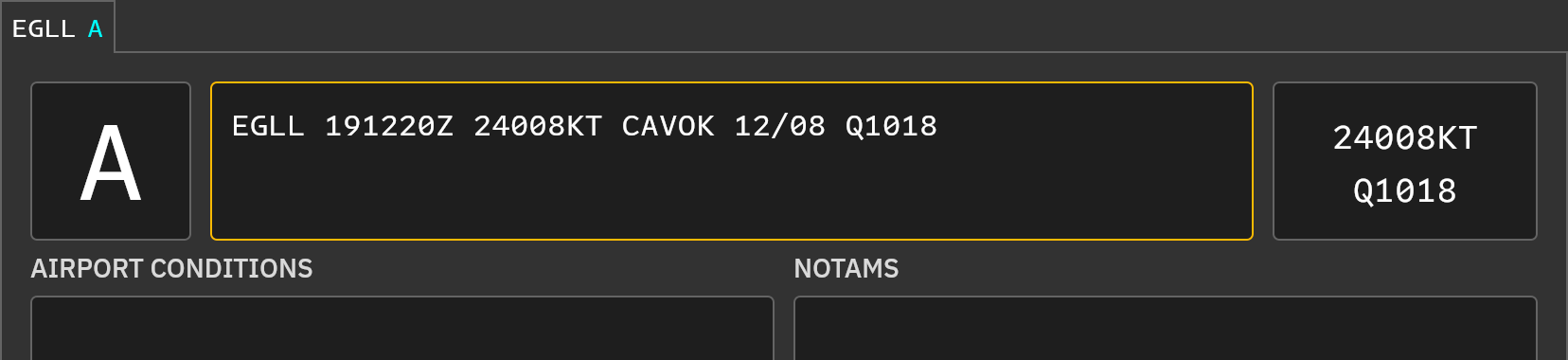
Sometimes the METAR received from the network is not what you want the ATIS to say. It may not be parsed correctly, or you may want to change what is transmitted, for example replacing 9999 NCD with CAVOK. While an ATIS is connected, you can replace the METAR with your own.
-
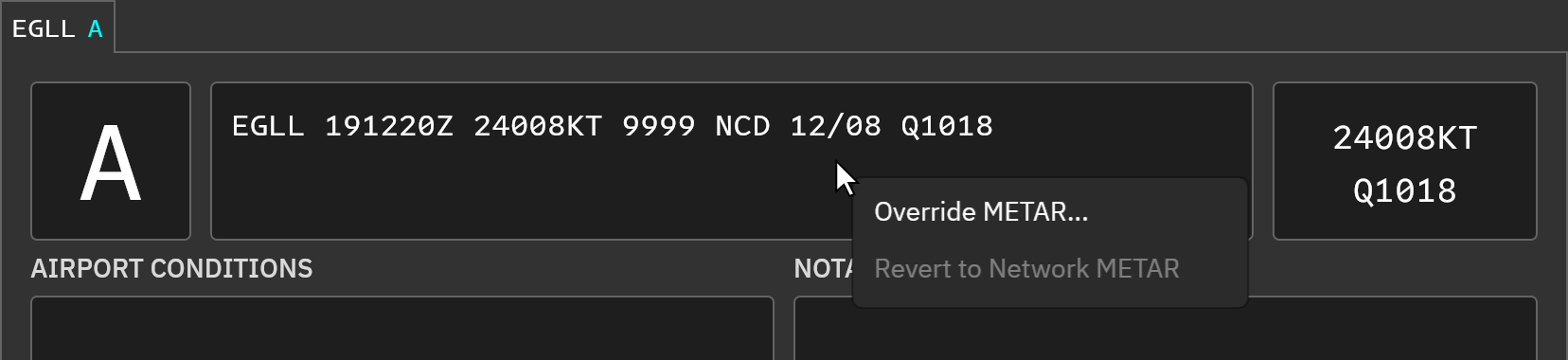
Right-click the METAR box and select Override METAR….
-
The METAR box becomes editable, with a blue border, and the current METAR is selected. Type the METAR you want to use.
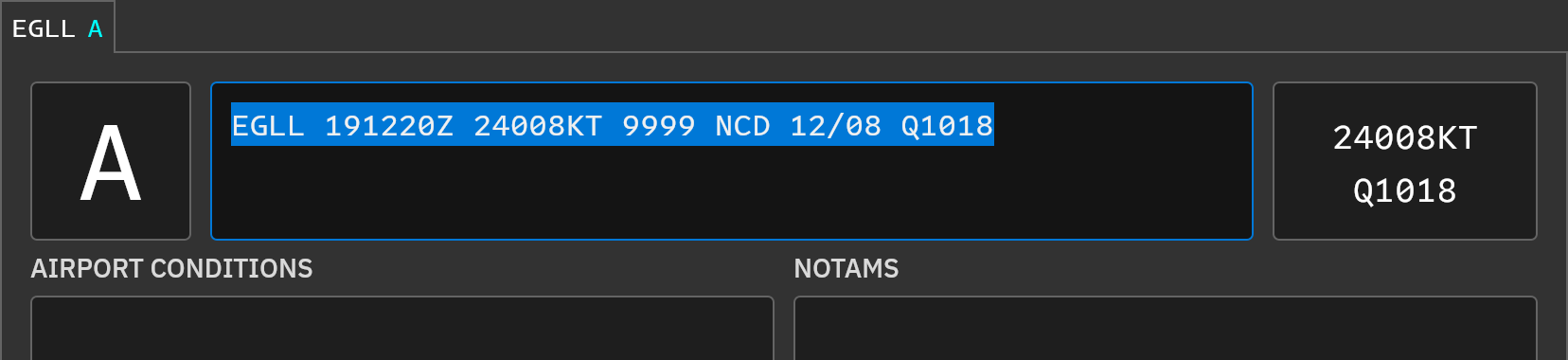
-
Press Enter to apply it, or Escape (or click anywhere else) to cancel.

Once applied, the ATIS is rebuilt from your METAR. The wind, altimeter, observation time, and every other part of the ATIS, including the text and voice ATIS and the data sent to websocket clients and the ATIS Hub, use the overridden METAR. The ATIS letter advances just as it does for a new METAR, and it blinks for a couple of seconds, without playing a notification sound, since you made the change yourself. If you press Enter without changing the METAR, nothing happens and the letter stays the same.
While an override is active, the border of the METAR box is amber.
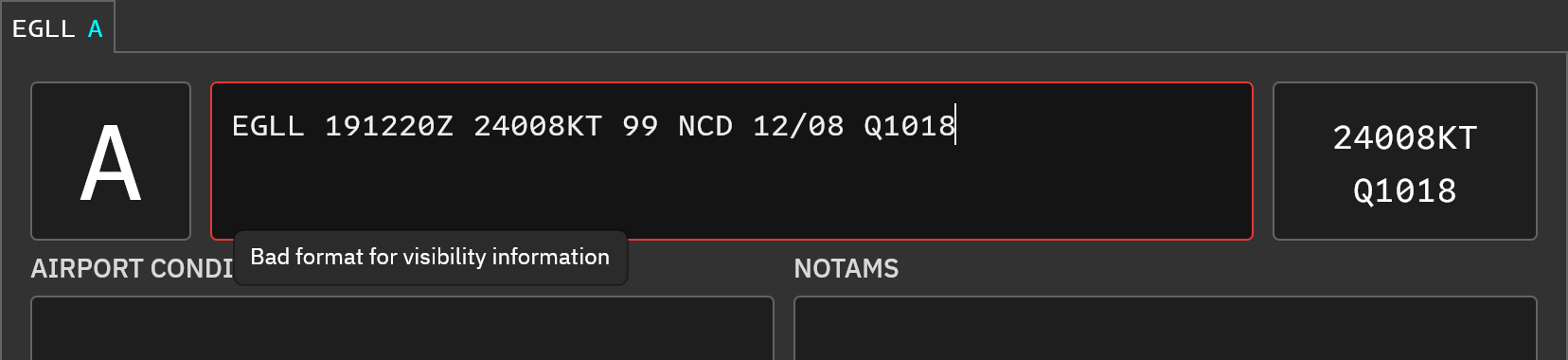
If the METAR cannot be parsed, the border turns red and the box stays open so you can correct it. A tooltip explains why it was rejected.
To go back to the METAR received from the network, right-click the METAR box and select Revert to Network METAR.
Things to know:
- Overriding is available only while the ATIS is connected.
- The override is temporary. It is removed when a new METAR is received from the network, so an outdated override cannot keep being broadcast, and when the ATIS is disconnected.
- The override is not saved to the preset or profile.
Fetch Real-World D-ATIS Letter
If the Automatically fetch ATIS letter option is enabled in User Settings, vATIS will automatically retrieve the real-world D-ATIS letter for stations with an FAA digital ATIS when connecting to the network. This process loads only the ATIS letter and does not include any related messages, such as airport conditions or NOTAMs.
Fetch Real-World D-ATIS
If the Automatically fetch D-ATIS option is enabled in User Settings, vATIS can fill in the Airport Conditions and NOTAMs from the real-world digital ATIS, replacing the need for external tools such as vATISLoad.
- Create a preset named D-ATIS for the station (the name is not case-sensitive) and select it in the preset list on the ATIS Station.
- vATIS fetches the real-world D-ATIS right away, then every 5 minutes while the preset remains selected. The ATIS letter, Airport Conditions, and NOTAMs are updated each time.
- Selecting a different preset stops the automatic updates.
Things to know:
- The real-world ATIS is matched to the station type: a Combined station uses the combined ATIS (or the departure ATIS if there is no combined one), while Arrival and Departure stations use the matching arrival or departure ATIS.
- If no D-ATIS is available for the station, the Airport Conditions show D-ATIS NOT AVBL.
- Text fetched automatically is not saved to the preset. Only your own edits to a D-ATIS preset are saved.
- The opening sentences of the real-world ATIS (station, letter, and weather) are removed, as is the trailing “ADVS YOU HAVE…” text. Only the airport conditions and NOTAMs are kept, and your contractions and patterns are applied to the text.
- To change how the real-world text is processed, see D-ATIS.