Patterns
The Patterns tab lets you match text with a regular expression (regex) and change how it is written and spoken. A pattern is matched against the text of your ATIS template, Airport Conditions and NOTAMs, so you do not have to define a contraction for every possible value. Use one when the same format repeats with different values, such as RSC 23 5/5/5 or approach suffix letters like the Z in ILS Z RWY 28R. The written text can stay exactly as you typed it while the spoken version is spaced out or converted for the voice synthesizer.
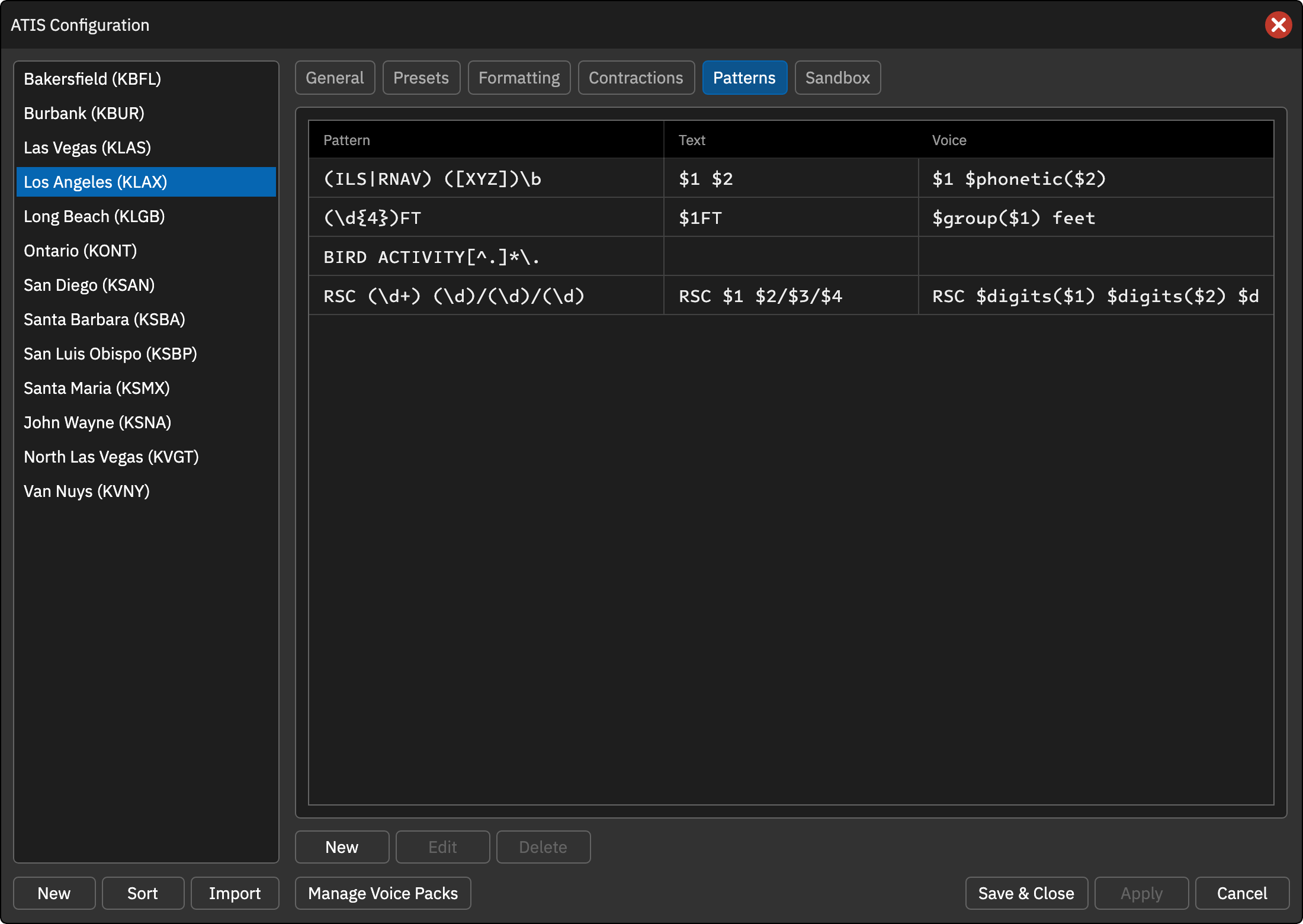
Adding a Pattern
- Click New.
- Enter the Pattern, a .NET regular expression. Wrap the parts that change in parentheses to capture them. The pattern is case-sensitive; start it with
(?i)to ignore case. - Enter the Text and Voice replacements, using the captured parts described below. Leave one empty to remove the matched text from the written ATIS or the voice; any doubled spaces or stray punctuation left behind are tidied up.
- Use the Preview box to check the result. It fills in a sample of text that matches your pattern and shows the Text and Voice results as you edit. Click Generate for a different sample, or type your own, such as
ILS Z RWY 28R, to test real text. If the pattern has a problem, or does not match the sample, the preview says so instead. - Optionally check Add to all ATIS stations in this profile to add the pattern to every station in the current profile.
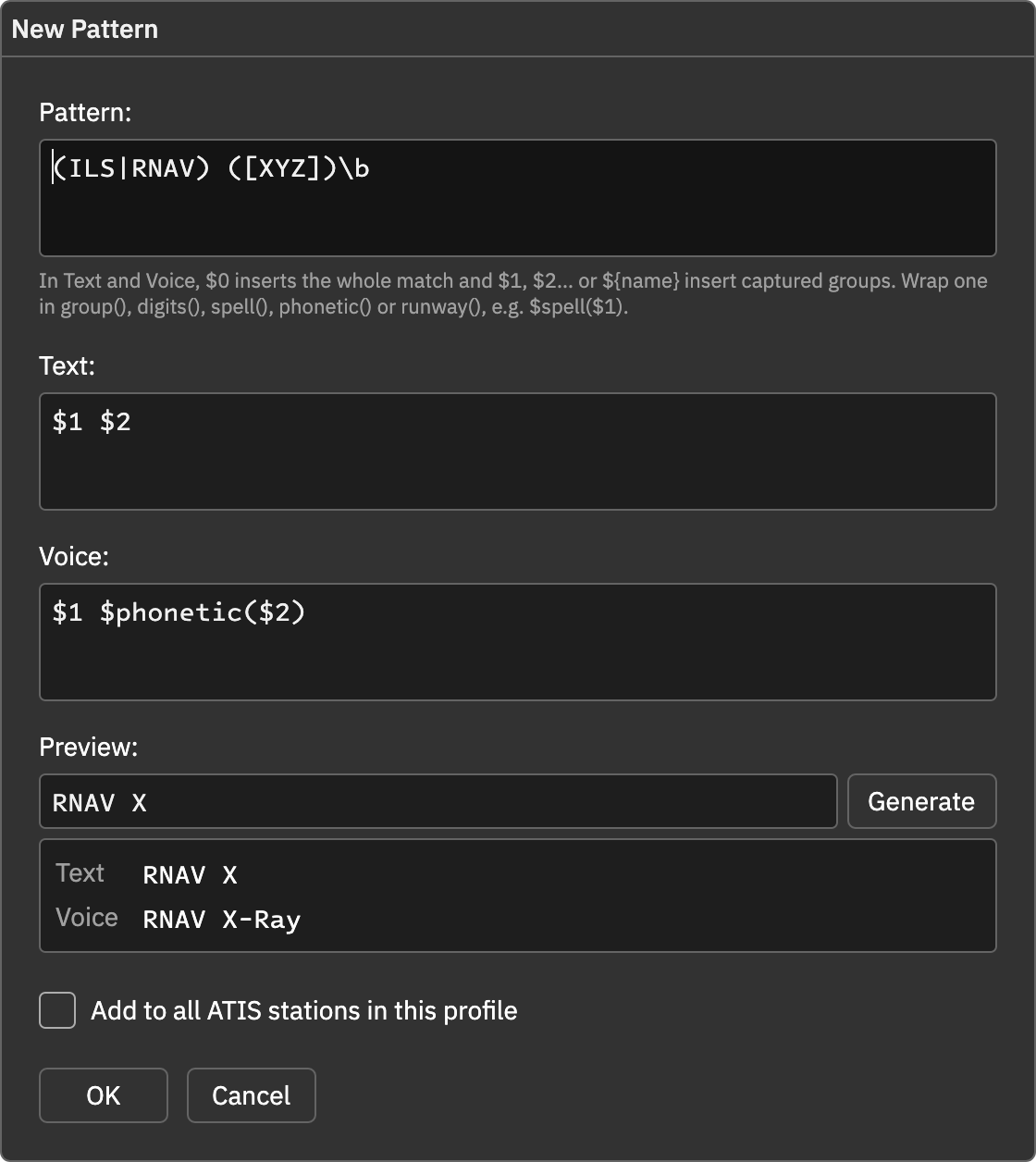
Editing and Deleting a Pattern
Select a pattern in the table and click Edit to change it in the same dialog, or Delete to remove it. The table cannot be edited directly.
Using Captured Groups
| Syntax | Meaning |
|---|---|
$0 | The whole text that matched. Use it to keep the original text and change only the voice |
$1, $2, … | The text captured by the first, second, … set of parentheses |
${name} | The text captured by a named group, written (?<name>...) in the pattern |
$$ | A literal $
|
Functions
Wrap a group in a function to change how it is spoken. Function names are not case-sensitive. When you type $ in the Text or Voice of a pattern, a list of functions appears. Use the arrow keys and press Enter or Tab to insert one, or Esc to dismiss the list. The cursor is left inside the brackets, ready for the group number.
| Function | Example input | Result |
|---|---|---|
$group($1) | 525 | five hundred and twenty-five |
$digits($1) | 525 | five two five |
$spell($1) | A25 | A 2 5 |
$phonetic($1) | ABC | Alpha Bravo Charlie |
$phonetic($1) | 25 | Tango Whiskey Oscar Foxtrot India Victor Echo |
$runway($1) | 25L | two five left |
$spell keeps each character as it is, so digits stay digits and are read one at a time by the voice. $phonetic spells letters with the phonetic alphabet, and spells each digit as its word (2 is “two”, read as Tango Whiskey Oscar). Use $digits to speak digits as plain words. $runway speaks a runway designator: 25L is “two five left”, 18C is “one eight center”, and 25L/07R is “two five left/zero seven right”. A single-digit runway such as 6L is “six left”, or “zero six left” for an ICAO station or when a zero is written (06L). Digits left in the voice text without a function are still read one at a time by the normal text-to-speech rules, so use $group() for quantities and $spell() or $phonetic() for letters.
Examples
| Purpose | Pattern | Text | Voice |
|---|---|---|---|
| Approach suffix letter, speak it phonetically | (ILS\|RNAV) ([XYZ])\b | $1 $2 | $1 $phonetic($2) |
| Runway surface condition codes | RSC (\d+) (\d)/(\d)/(\d) | RSC $1 $2/$3/$4 | RSC $digits($1) $digits($2) $digits($3) $digits($4) |
| Number as a quantity | (\d{4})FT | $1FT | $group($1) FEET |
| Runway in a sentence | RWY (\d{1,2}[LRC]?) | RWY $1 | RUNWAY $runway($1) |
| Remove a sentence | BIRD ACTIVITY[^.]*\. | (empty) | (empty) |
| Keep the text, change only the voice | \bPAPI\b | $0 | P A P I |
With the first example, ILS Z RWY 28R stays as written in the text ATIS, and the voice speaks the letter as “Zulu” and reads “ILS Zulu RWY 28R”.
Checking Your Pattern
While you type, vATIS checks the pattern and the replacements and explains any problem under the relevant box in plain language. The OK button will not close the dialog until the problems are fixed. The same checks apply when you edit a pattern.
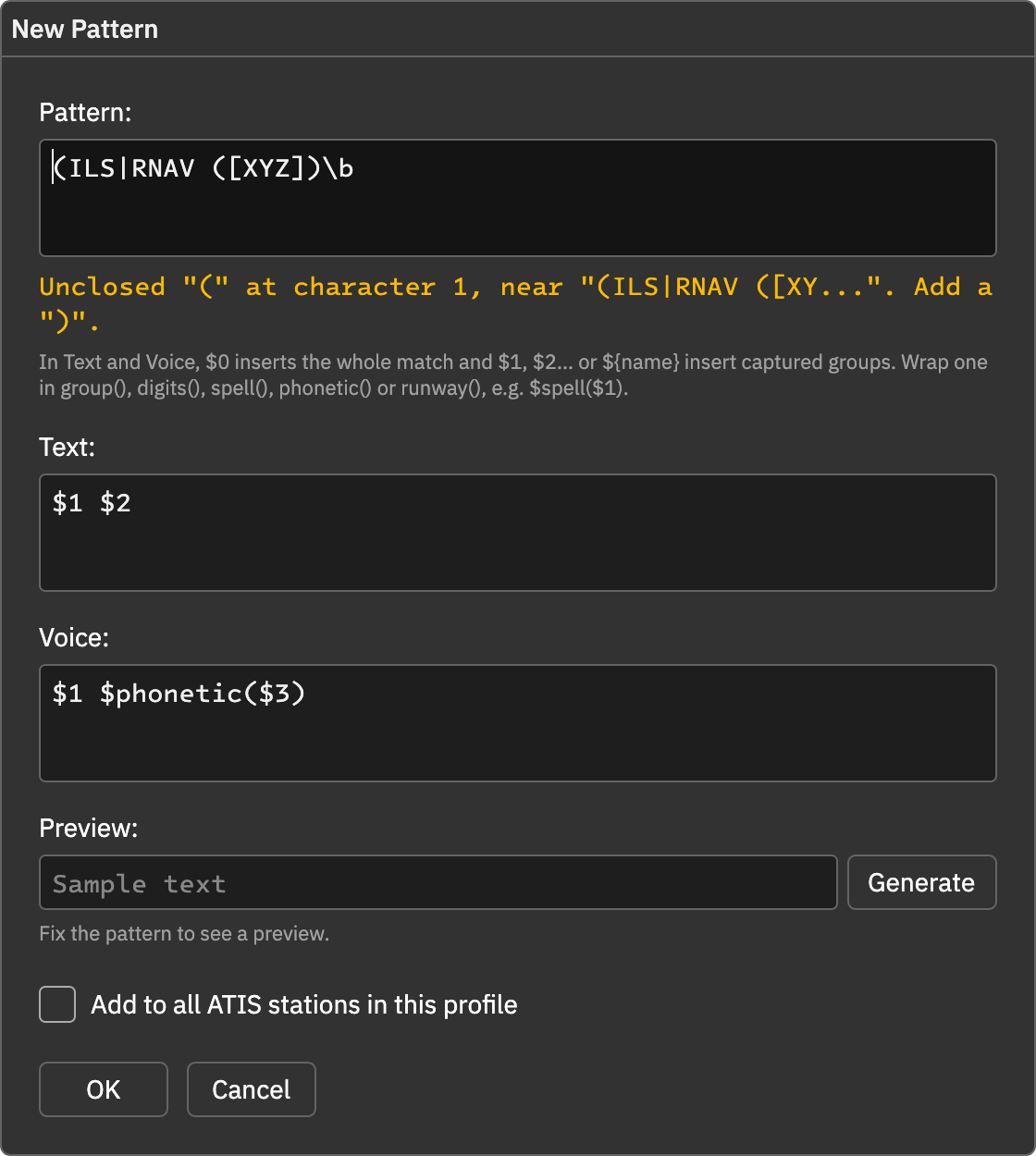
Things it catches include:
- A missing or extra bracket, such as
(without a closing) - A pattern that matches empty text, such as
a*, which would match everywhere - A replacement that refers to a group the pattern does not have, such as
$3when the pattern only has two sets of parentheses - An unknown function name, or a function without a group, such as
$spellinstead of$spell($1)
Notes
- Patterns are applied in the order they appear in the table, before contractions are replaced.
- A pattern is applied automatically wherever it matches, so you do not need to insert it anywhere.
- An invalid pattern or an unknown function name is rejected when you save it. A pattern that takes too long to run is ignored.
- Patterns also apply to D-ATIS text, so a pattern such as the RSC example, or one that removes a sentence, works on a real-world D-ATIS without any reformatting. Use them to clean up the fetched D-ATIS.